SSO & MFA Setup
If your Oracle EPM Cloud environment enforces single sign-on or multi-factor authentication, EPM Commander connects through OAuth 2.0 device code. Your identity domain administrator configures it once; after that each user signs in through your normal SSO or MFA screen and stays connected.
Parts 1 to 3. Requires the Identity Domain Administrator role in the OCI Console. Roughly fifteen minutes.
Part 4. Paste two values, complete the usual SSO or MFA challenge. Under a minute.
Why OAuth, and not a browser sign-in
EPM Commander reads and writes through Oracle's documented REST APIs (/HyperionPlanning/rest/…, /interop/rest/…). Oracle states that REST APIs cannot be used with basic authentication by users who have MFA enabled, and that OAuth 2.0 is the supported alternative.
A signed-in browser session is not an alternative. On an SSO-protected pod, Oracle Cloud Gate refuses browser session cookies on the REST paths even when the user is fully signed in to the EPM web application in that same browser:
HTTP 401
WWW-Authenticate: Bearer error="invalid_session",
                  error_description="Authentication Failure"
This is why EPM Commander offers no “sign in with your browser” option for SSO environments. The device code flow still puts your own identity provider in charge of the sign-in — the same SSO page, the same MFA prompt, the same policies — it simply ends with a token the REST APIs accept.
Part 1 — Create the application
In the OCI Console, as an Identity Domain Administrator.
- Open Identity & Security → Domains and select the domain your EPM environment uses. Copy the Domain URL from the overview — users will need it, and it looks like
https://idcs-<guid>.identity.oraclecloud.com. - Go to Integrated applications → Add application and choose Mobile Application. That is Oracle's name for a public client — one with no client secret, which is what a desktop add-in must be.
- Name it something recognisable, such as Captain EPM, and continue.
- Under Allowed grant types, tick Device code and Refresh token. Leave Implicit unticked — Oracle requires it to be off for this configuration.
- Enable Add app roles, click Add roles, and add Identity Domain Administrator. Oracle's procedure lists this as required.
- In the Resources section, add the EPM Cloud service for this environment and grant the scope ending
:consumer::all. - Save, then Activate the application. An application left inactive fails sign-in with
invalid_client.
save as public/docs/oauth/add-application.pngsave as public/docs/oauth/grant-types.pngsave as public/docs/oauth/token-issuance-toggles.pngsave as public/docs/oauth/add-app-roles.pngsave as public/docs/oauth/activate-application.pngPart 2 — Configure the EPM Cloud service
- Still inside the identity domain, open the Oracle cloud services tab. This is not the Integrated applications tab you just used.
- Open the EPM service for this environment. It is named after the pod, for example
Planning_<pod-name>. Test and production are separate entries. - Go to OAuth configuration → Edit OAuth configuration.
- Enable Add secondary audience, then add this environment's base URL to the list below the toggle, with no trailing slash and no context path:
https://<pod>-<domain>.epm.<region>.ocs.oraclecloud.com
- Enable Allow token refresh. This is what lets users stay connected without a fresh MFA challenge every hour.
- Click Submit, and confirm the URL is still listed when the page reloads.
save as public/docs/oauth/cloud-services-tab.pngsave as public/docs/oauth/secondary-audience.pngBefore publishing this image, blank out: nothing — this page holds no secrets, but crop to the pod you are documenting
Repeat Part 2 for every environment. Test and production are separate services with separate identifiers, and a token minted for one is never valid for the other.
Part 3 — Collect the values for users
Send your users these four values. None of them is a secret: a device code client has no client secret by design, and all four are displayed openly in the console.
| Value | Where to find it |
|---|---|
| EPM URL | The environment's base URL, as used in a browser. |
| Identity domain URL | Domain overview, from Part 1 step 1. EPM Commander can often detect this automatically. |
| Client ID | The application's OAuth configuration tab. Not the “Application ID” on the Details tab — they are different values and only the Client ID works. |
| Service Instance ID | The Resources table of the same tab. The scope reads urn:opc:serviceInstanceID=<digits>urn:opc:resource:consumer::all; EPM Commander accepts the whole string or just the digits. |
save as public/docs/oauth/oauth-configuration.pngBefore publishing this image, blank out: the Client ID, if this image will be public
save as public/docs/oauth/details-application-id.pngBefore publishing this image, blank out: the Application ID, if this image will be public
save as public/docs/oauth/resources-table.pngPart 4 — Connect from Excel
- In the EPM Commander ribbon, open EPM Connections and select or create the environment.
- Choose Sign in with OAuth.
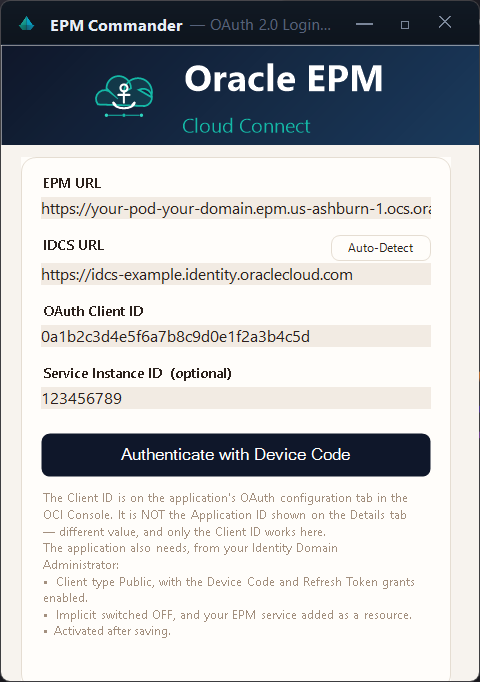
- Paste the Client ID and Service Instance ID from Part 3. Both are remembered per environment, so this is a one-time step.
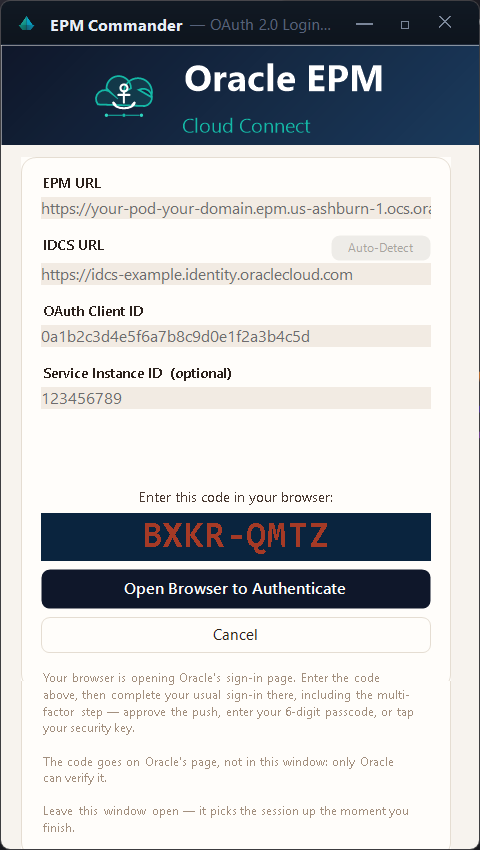
- Click Authenticate with Device Code. A short code appears and your browser opens Oracle's sign-in page.
- Complete your organisation's normal sign-in there — SSO redirect, MFA push, passcode, or security key, whatever your policy requires.
- Return to Excel. The connection completes on its own, and the ribbon unlocks the groups that match the detected application type.
save as public/docs/oauth/oracle-device-signin.pngBefore publishing this image, blank out: the user name, and the device code if the image will be public
Staying signed in
After the first sign-in, EPM Commander reconnects on its own using a refresh token, so reopening Excel does not mean another MFA challenge. Choosing Sign Out discards that stored sign-in along with the browser session, so the next connection challenges again from scratch.
If it does not connect
Every attempt is recorded in %LocalAppData%\CaptainEPM\CaptainEPM_debug.log. The log names the failure rather than leaving you to guess: look for the token claims: line and any WWW-Authenticate: line.
| What the log says | What to change |
|---|---|
error_description="Token Audience" | Part 2. The environment's base URL is not in the secondary audience list. Confirm it with the token claims: line — if aud= does not contain the base URL, the value was never saved. |
invalid_client | Client ID not recognised: wrong value, wrong domain, or the application was never activated. Check it is the Client ID and not the Application ID. |
invalid_grant | The application may not use the Device code grant. Part 1, step 4. |
unauthorized_client | The grant is allowed but the scope is not. Add the EPM resource (Part 1, step 6) and supply the Service Instance ID. Domains set to Authorized resources: Explicit refuse a generic scope. |
invalid_scope | The EPM resource is not attached to the application at all. |
invalid_session | A browser cookie session reached a REST path. Expected on an SSO pod — use OAuth, as described at the top of this page. |
One case is worth calling out because it looks alarming and is not: if sign-in clearly succeeds and EPM then answers 401, the credentials are fine. A token was issued; the service simply does not accept it yet. That is Part 2 almost every time.
When the audience is the problem, EPM Commander says so directly and fills in your own environment URL:
Error 401: The sign-in worked. This environment is not listed in the
token's audience.

Oracle rejected the token with "Token Audience", which means one specific
setting: the EPM service has not been told to accept tokens for this URL.

  1. Enable Add secondary audience.
  2. Add exactly this value, with no trailing slash or path:
     https://<your-pod>.epm.<region>.ocs.oraclecloud.com
  3. Enable Allow token refresh, then Submit.

Switching the toggle on is not enough on its own - the URL has to be in
the list and saved.What is stored, and where
- Your password is never seen by EPM Commander. You type it into your own identity provider's page, in your own browser.
- Tokens stay on your workstation, encrypted with Windows DPAPI under your own account, and are stored per environment so a test token can never reach production.
- Your policies still apply. Session lifetime, MFA rules, and network perimeter restrictions are enforced by the identity domain exactly as they are for the web application. Revoking access there revokes it here.
- Nothing is logged that could be replayed. The diagnostic log records a token's audience and expiry, never the token.
Oracle's own reference for this flow: REST API authentication with OAuth 2. The same guide is available inside the add-in at Help → Connection and OAuth Setup.